

Getting started
Once the product is activated, it appears on your account’s main page and in the My products section. Click the product name to open the settings panel.- In the settings, find the object you want to configure and click its row (the one that displays a small graph thumbnail).
- In the left-hand menu, select Protection.
- Configure the parameters described below.
Protection mode
Choose the active protection method applied to incoming traffic.Sensor
Sensor
Monitors the total number of requests, spikes, and errors while the filters remain in passive mode. If an attack is detected, the sensor activates the filters to mitigate it. Response time is usually under one minute but may vary with attack intensity.
Redirect
Redirect
Visitor requests receive an additional redirect to the requested location.
JS validation
JS validation
Requests from regular IP addresses are validated using JavaScript.
JS advanced validation
JS advanced validation
Requests from regular IP addresses are validated using advanced JavaScript checks.
Captcha
Captcha
Each request to the site must pass a Captcha challenge before being allowed through.
Proactive protection
Protection based on a positive security model. Users whose behavior does not match the model can be blocked or subjected to additional checks, depending on the configured settings. When proactive protection is enabled in sensor mode, requests are not filtered, but each new visitor is evaluated against multiple parameters:- Pages visited on the site
- Use of keep-alive connections
- Presence of attacks on other sites
- Whether request limits are exceeded
- User Agents used
- Other indicators
Cookie
Limit the duration of user sessions to reduce the window of opportunity for unauthorized actions. When the configured time expires, users must re-authenticate. The default value is 30 minutes. Clicking Generate new protection key forces all active users to revalidate their sessions.The lifetime of cookies used by the security system does not affect your website’s session durations. The system does not modify the website’s original cookies.
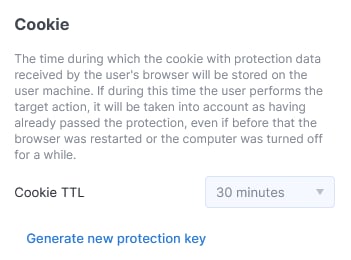
Cookie TTL settings
Whitelist, Blacklist, Greylist
Manage IP, subnet, and ASN-based access lists from the same panel. Switch between tabs to configure each list.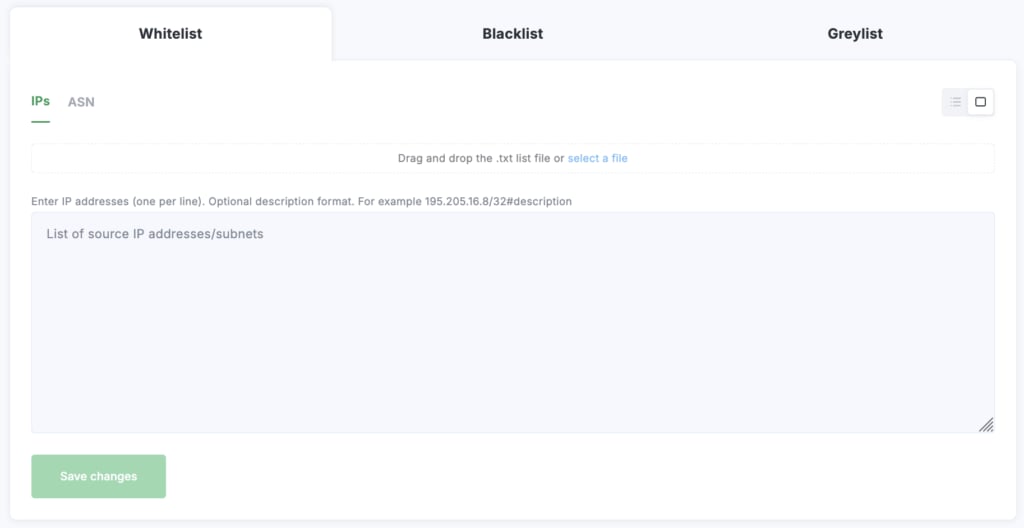
Whitelist / Blacklist / Greylist tabs
- Whitelist
- Blacklist
- Greylist
Requests from addresses on this list are transmitted without filtering.
- Fill out the form to add a new address, or upload a
.txtfile with one address per line. - Add individual addresses (e.g.
8.8.8.8) or networks with a mask (e.g.8.8.8.0/24). - Use the ASN tab to add AS numbers the same way.
Geolocation Filter
Restrict access to your resource based on the visitor’s country of origin.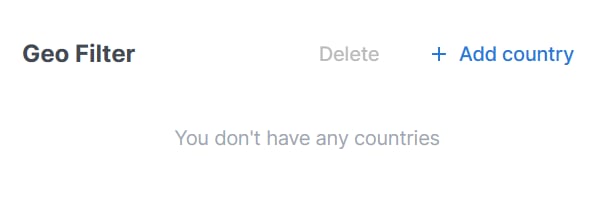
Empty Geo Filter
- Click Add country and fill out the form. Countries are available from a dropdown list.
- Assign a specific protection level to each selected country.
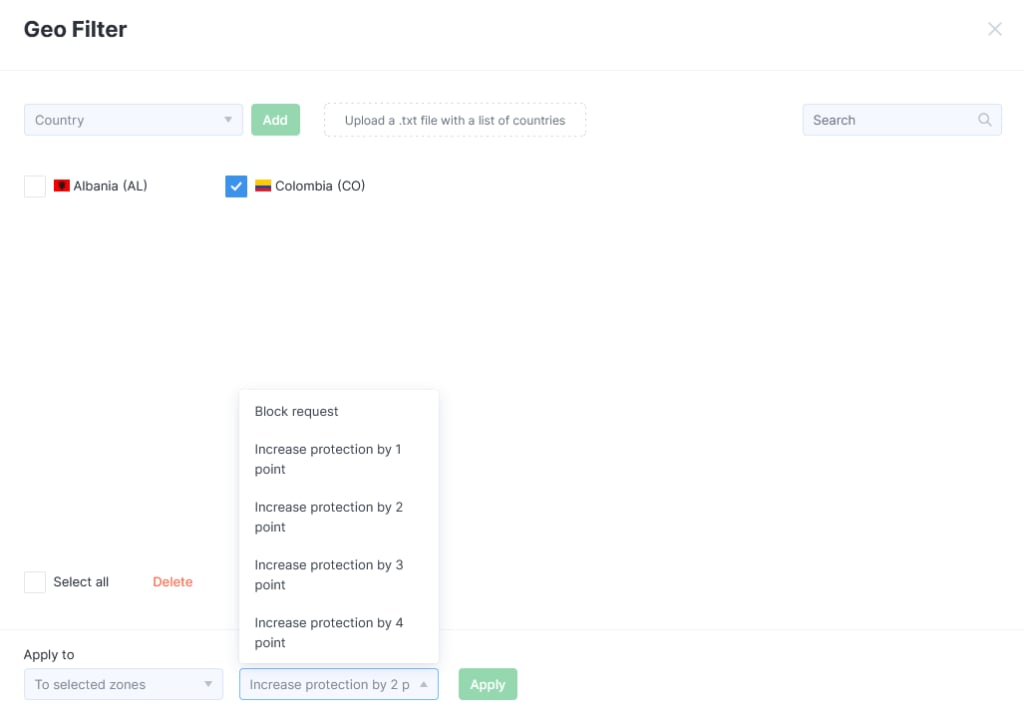
Geo Filter rule with action dropdown
SENSOR → REDIRECT → JS → JSA → CAPTCHA
Exceptions by location
Disable interactive checks for specific request paths — useful when only bots or mobile apps access a particular server resource and a check would break the client. A request is sent to the whitelist if its path contains a segment specified in this setting.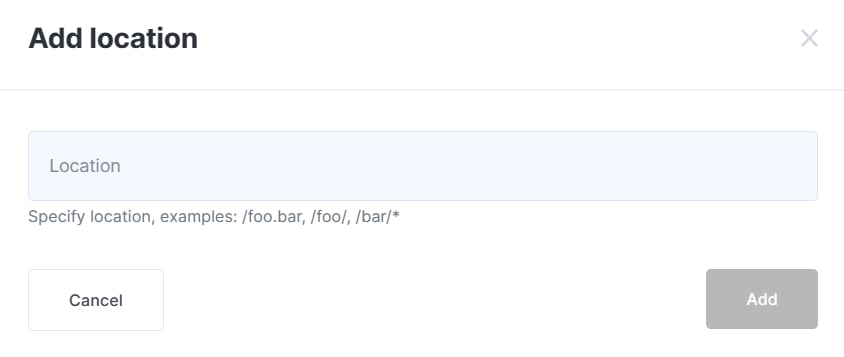
Add location
/location to the whitelist will skip checks for:
site.com/locationsite.com/location/site.com/location.phpsite.com/location.php?id=123site.com/admin/location
site.com/some-other-locationsite.com/en_location.php
Header Filter
Create rules to block or allow requests containing a specific header. Especially useful when working with APIs, where requests are made by a separate application. You can specify a single header or a combination of several.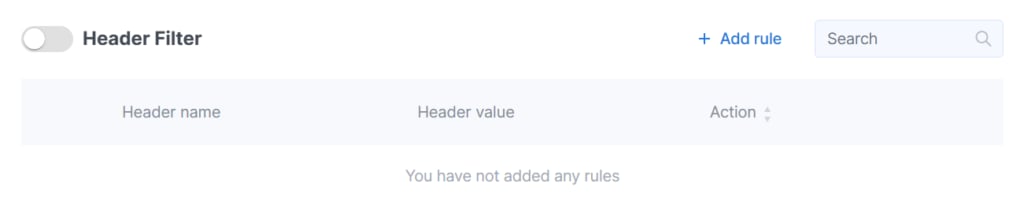
Header Filter list
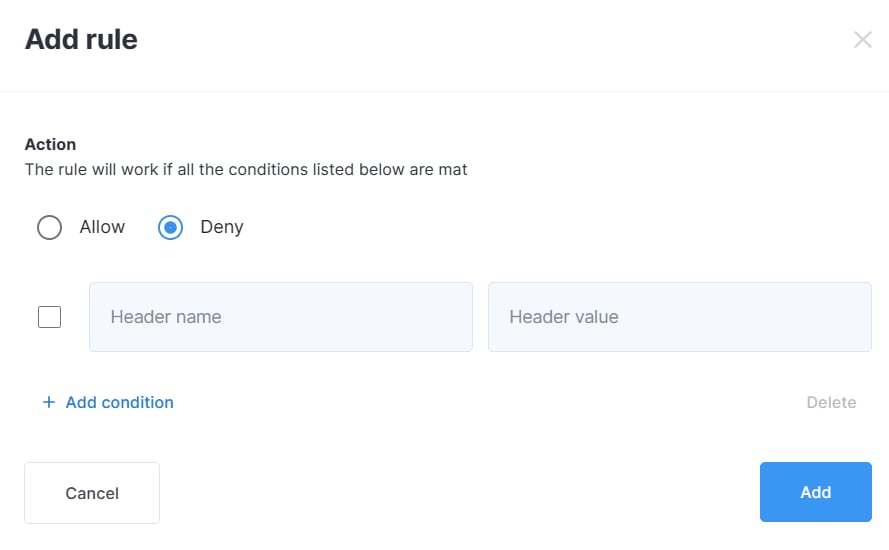
Add header rule
- Choose Allow or Deny as the action.
- Provide a Header name and Header value.
- Use Add condition to combine multiple headers in a single rule.
Location filter
Configure filtering for different locations of your resource. A default rule template is provided — edit it from the row actions, or create a new rule from scratch with Add rule.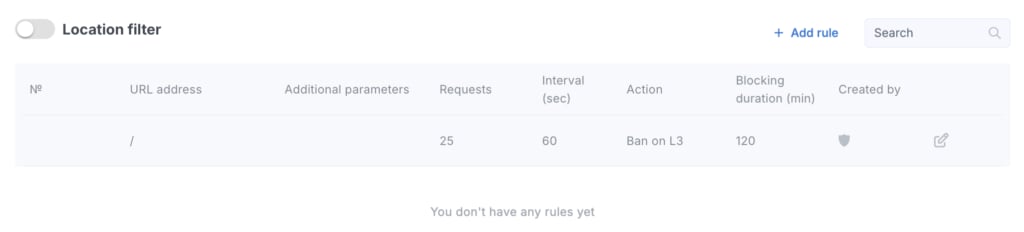
Location filter table
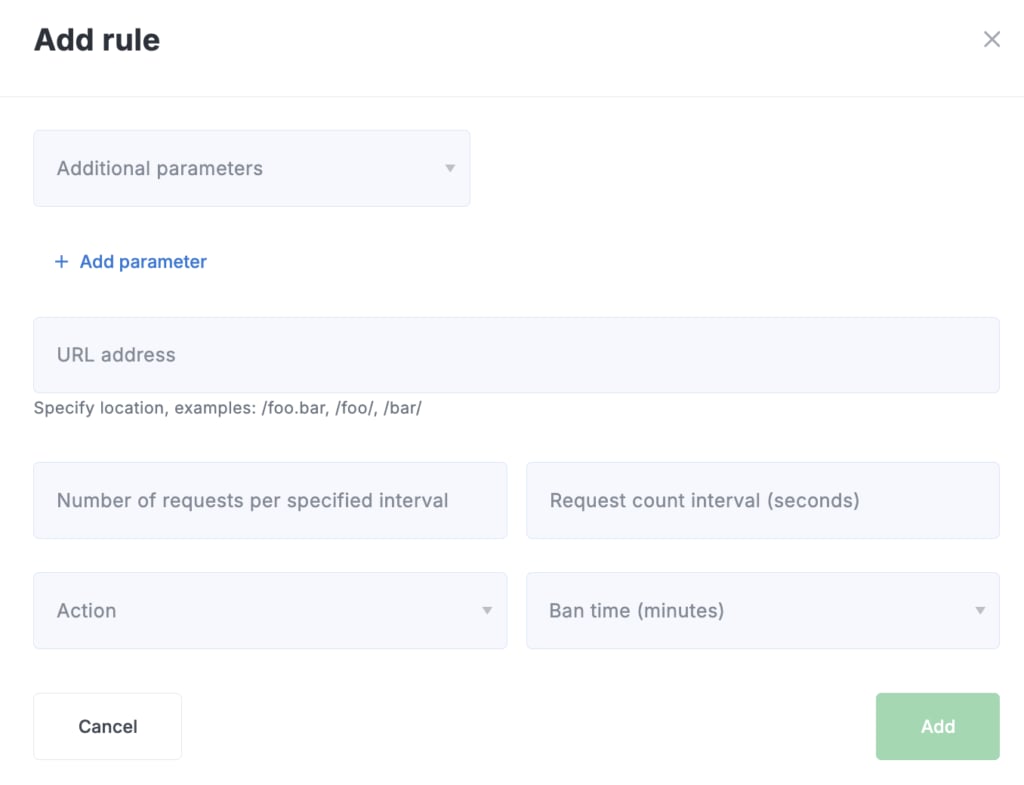
Add location filter rule
- URL address — location to match (examples:
/foo.bar,/foo/,/bar/). - Number of requests per specified interval and Request count interval (seconds) — define the rate-limit window.
- Action — what to do when the threshold is exceeded.
- Ban time (minutes) — duration of the block.
Additional parameters
- Count subject — specify a unique user identifier (
uid) to refine the rule. Theuidis calculated from request parameters, IP, and JA3. If not selected, the calculation uses the IP address. - Additional — create a stop rule by setting
stop=1. If a request matches a rule withstop=1, subsequent rules are not evaluated for that request. You can have multipleSTOPrules.
Advanced settings
Experienced users can configure sensor parameters, application-level (L7) bot detection, and network-level (firewall) thresholds.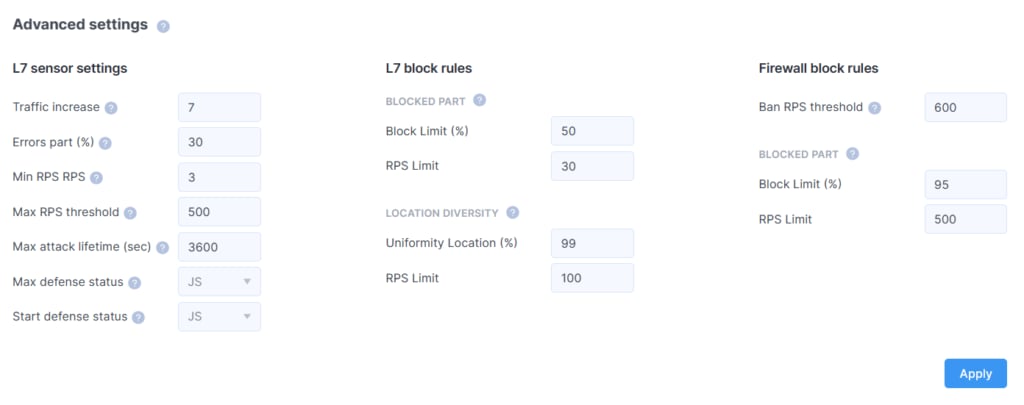
Advanced settings
L7 sensor settings
Parameters that control attack detection.L7 block rules
Values used to detect bot activity at the application level. If more requests arrive from an IP than the RPS Limit, and the percentage of blocked requests exceeds the Block Limit, the system identifies the address as malicious and blocks it at L7. The user from that IP sees an error page instead of the site.- Blocked part
- Block Limit (%)
- RPS Limit
- Location diversity
- Uniformity Location (%)
- RPS Limit
Firewall block rules
Network-level thresholds that block traffic from nodes, subnets, and networks without activating application-level filtering.- Ban RPS threshold — if exceeded, the IP is blocked without additional checks.
- Blocked part L3 (%) — if RPS Limit is exceeded and the proportion of blocked requests from that IP surpasses Block Limit, the address is blocked.
- Block Limit (%)
- RPS Limit